Challenges in Vantage Fit can include many different types of tasks. Some complete themselves automatically as you move through your day, while others need you to tap a button or upload something. Here's how each type works so you never miss out on progress.
Auto-Tracked Tasks
These tasks complete themselves -- no action needed from you beyond staying active.
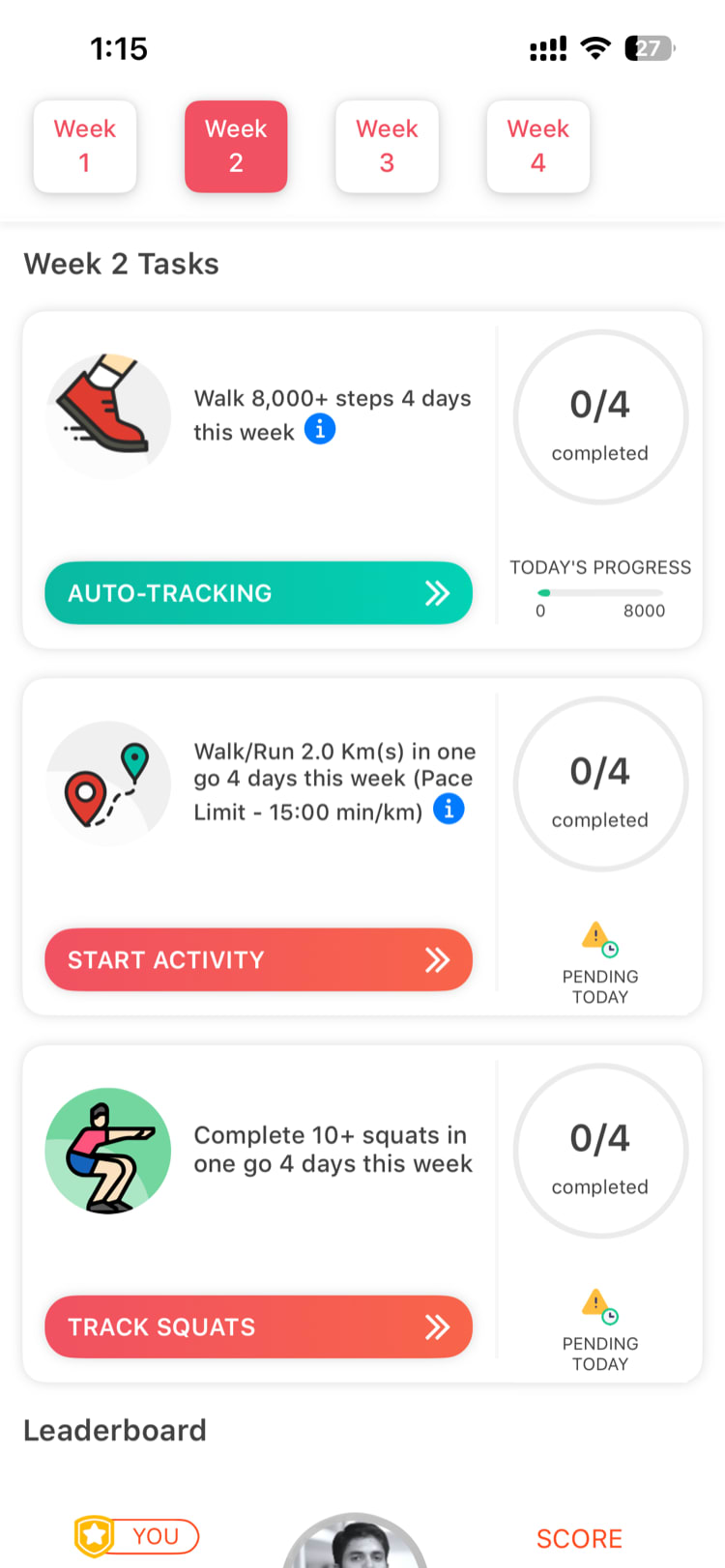
Steps, Distance, and Active Calories are pulled directly from your phone's motion sensors or your connected wearable device (Apple Watch, Fitbit, Garmin, etc.). As long as your device is syncing with Vantage Fit, your progress updates automatically throughout the day.
Tip: If your auto-tracked tasks aren't updating, check Settings > Connected Devices to make sure your health data source is connected and has the right permissions.
Manual Log Tasks
Some tasks require you to log your activity yourself. These include:
- Water intake -- tap to log glasses or milliliters
- Mood -- select your mood for the day
- Weight -- enter your current weight
- Yoga / Meditation -- log minutes or sessions
To complete a manual log task:
- Open the challenge and find the task in your task list
- Tap the Log button next to the task
- Enter your data (amount, duration, etc.)
- Tap Save
Your progress updates immediately after logging.
Custom Activity Tasks
Some challenges include custom activities defined by your HR admin. These appear in your challenge task list with specific instructions on what to do. Tap the task to see details, then follow the instructions to mark it complete.
Adherence Tasks (Daily Check-In)
Adherence tasks simply require you to check in daily. Think of them as a commitment tracker -- open the challenge, find the adherence task, and tap to confirm you showed up. This is often used for tasks like "Did you take a walk today?" or "Did you eat a healthy breakfast?"
Content Tasks (Watch / Read)
Some challenges include educational content -- articles, videos, or podcasts. To complete a content task:
- Open the challenge and find the content task
- Tap to open the content
- Watch the video or read the article to completion
- The task marks itself as complete once you finish
Note: You typically need to reach the end of the content for it to count as complete. Skipping through a video won't register as done.
Upload Tasks
Certain challenges ask you to upload files as proof of completion -- for example, uploading a lab report or a photo of a healthy meal. To complete an upload task:
- Open the challenge and find the upload task
- Tap the Upload button
- Select a file from your phone (PDF, image, etc.)
- Submit the upload
Your admin may review uploads before marking them as approved.
Tracking Your Overall Progress
Every challenge shows your progress in several ways:
Percentage Bar
At the top of your challenge screen, a progress bar shows your overall completion percentage across all tasks. This fills up as you complete individual tasks throughout the challenge.
Today's Progress
A dedicated section shows what you've accomplished today -- which tasks are done, which are pending, and which are in progress.
X/Y Completion
For tasks with numeric targets (like "10,000 steps" or "8 glasses of water"), you'll see an X/Y counter showing your current number versus the target. For example, "6,500 / 10,000 steps."
Week Selector
For multi-week challenges, use the week selector to view your progress for the current week or browse past weeks. Each week may have different tasks or targets, so check the selector to see what's expected of you this week.
Tips for Staying on Track
- Check your challenge first thing in the morning to see what tasks are on your plate for the day
- Log manual tasks as you go rather than trying to remember everything at night
- Enable notifications in Vantage Fit settings so you get reminders about pending tasks
- Sync your wearable before the end of the day to make sure all auto-tracked data is captured
Tip: If a challenge has daily tasks, try to complete them before midnight. Most challenges reset task availability on a daily cycle, and you can't go back to complete a missed day's check-in or adherence task.
Need more help? Contact support from Settings → Help in the app.
Related articles: