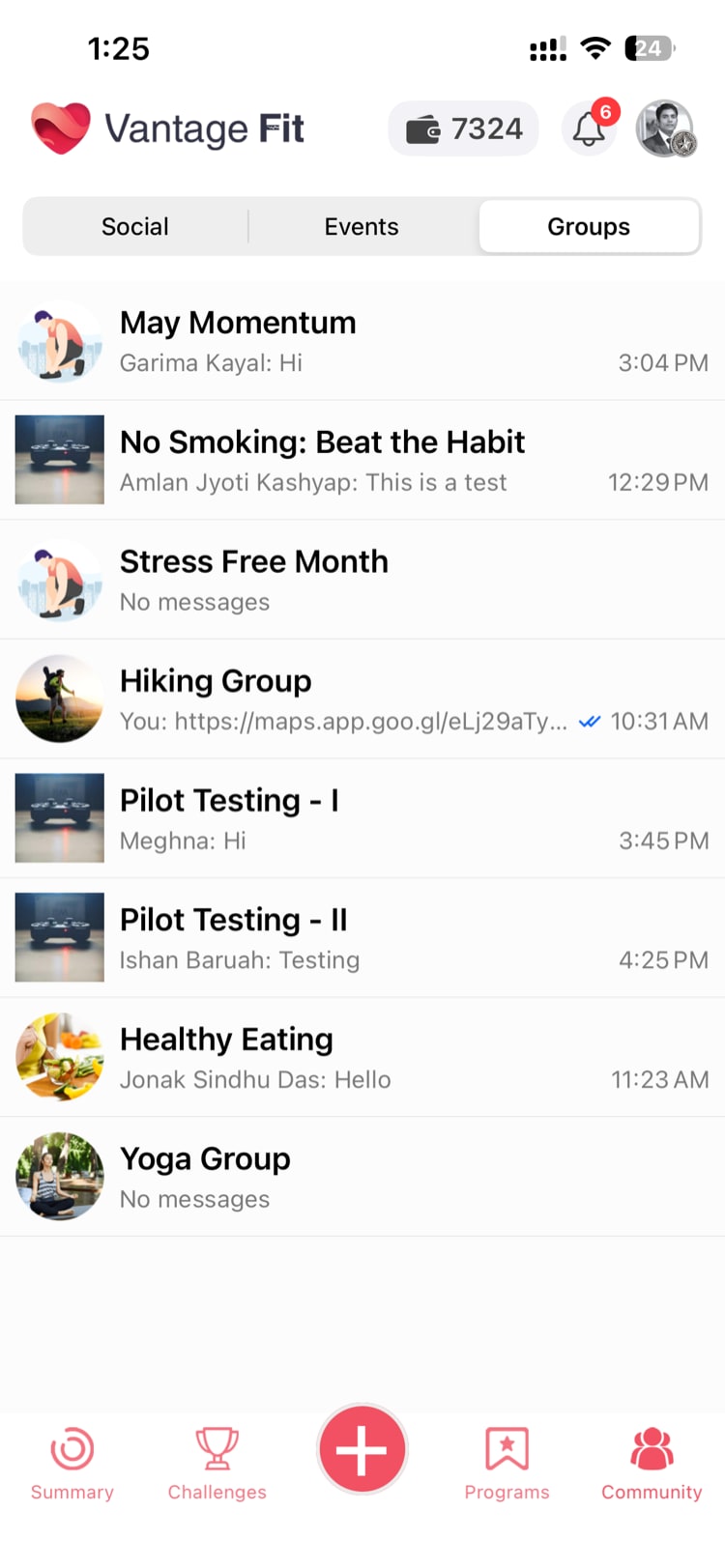
Vantage Fit includes a real-time chat feature that lets you have conversations with colleagues around your wellness activities. Whether it's coordinating with your challenge team or discussing fitness goals with a focus group, chat keeps the conversation flowing.
Where to Find Chat
- Tap the Community tab at the bottom of the app
- Look for the Groups or Chat section
Note: Chat is an optional feature that your company must enable. If you don't see a chat option in the Community tab, your organization hasn't activated it.
Types of Chat Groups
There are two main types of chat groups in Vantage Fit:
Focus Group Chats
These are team discussion groups created by your HR admin or team leads. Focus groups are typically organized around:
- Departments -- Your team's wellness chat
- Interest groups -- Running club, yoga enthusiasts, healthy cooking, etc.
- Wellness programs -- Groups for specific wellness initiatives
Focus groups persist as long as your admin keeps them active. They're great for ongoing conversations about fitness, sharing tips, and motivating each other.
Challenge Chats
These are auto-created when a challenge launches. When your HR admin starts a new challenge, a dedicated chat group is automatically generated for participants. Key features:
- Every challenge participant is added to the group automatically
- The chat lives for the duration of the challenge
- It's the natural place to discuss challenge strategy, share progress, and encourage teammates
Tip: Challenge chats are a great way to build camaraderie during challenges. Share your daily progress, ask questions about tasks, or just drop a motivational message for your teammates.
Sending Messages
Chat in Vantage Fit works like any modern messaging app:
- Open a group chat
- Type your message in the text field at the bottom
- Tap Send
You can also:
- Send images -- Tap the image/attachment icon to share photos (workout screenshots, healthy meals, etc.)
- React to messages -- Quick emoji reactions to acknowledge others' messages
Messages are delivered in real time, so conversations flow naturally without refreshing.
Notifications and Unread Badges
- When you receive new messages in any chat group, an unread badge appears on the Community tab icon
- You'll also see unread indicators next to specific group chats that have new messages
- Tap into the chat to read the messages and clear the badge
Notification behavior depends on your app notification settings. You can manage chat notifications in your device's notification settings for Vantage Fit.
Chat Features at a Glance
| Feature | Details |
|---|---|
| Real-time messaging | Messages appear instantly, no refresh needed |
| Image sharing | Share photos and screenshots in chat |
| Group chat | Multiple participants in a single conversation |
| Auto-created groups | Challenge chats are generated automatically |
| Unread badges | Visual indicator for new messages |
Privacy and Moderation
- Chat messages are visible only to members of the specific group
- Focus group membership is managed by your HR admin
- Challenge chat membership is automatic for challenge participants
- Your company's code of conduct applies to chat interactions
Tips for Using Chat Effectively
- Check in daily during challenges -- A quick "Good morning, team!" or progress update keeps the group engaged
- Share tips and resources -- Found a great stretching routine? Share it in your focus group
- Ask for advice -- Not sure about a challenge task? Your groupmates can probably help
- Keep it positive and supportive -- Chat is a wellness space. Encouragement goes further than competition
Need more help? Contact support from Settings → Help in the app.
Related articles: