Custom emails let you send branded communications to your employees directly from the Vantage Fit dashboard. These emails automatically include your company's branding — logo, colors, and styling.
Creating and Sending a Custom Email
- Log in to the Vantage Fit Admin Dashboard.
- Go to Community in the left sidebar.
- Click Send Custom Email.
- Select a template from the available email templates.
- Write your email content — subject line, body text, and any additional details.
- Upload attachments if needed (company logo, banner image, etc.).
- Select the target audience — all employees or filtered by department, country, or demographics.
- Preview the email to see exactly what recipients will receive.
- Click Send.
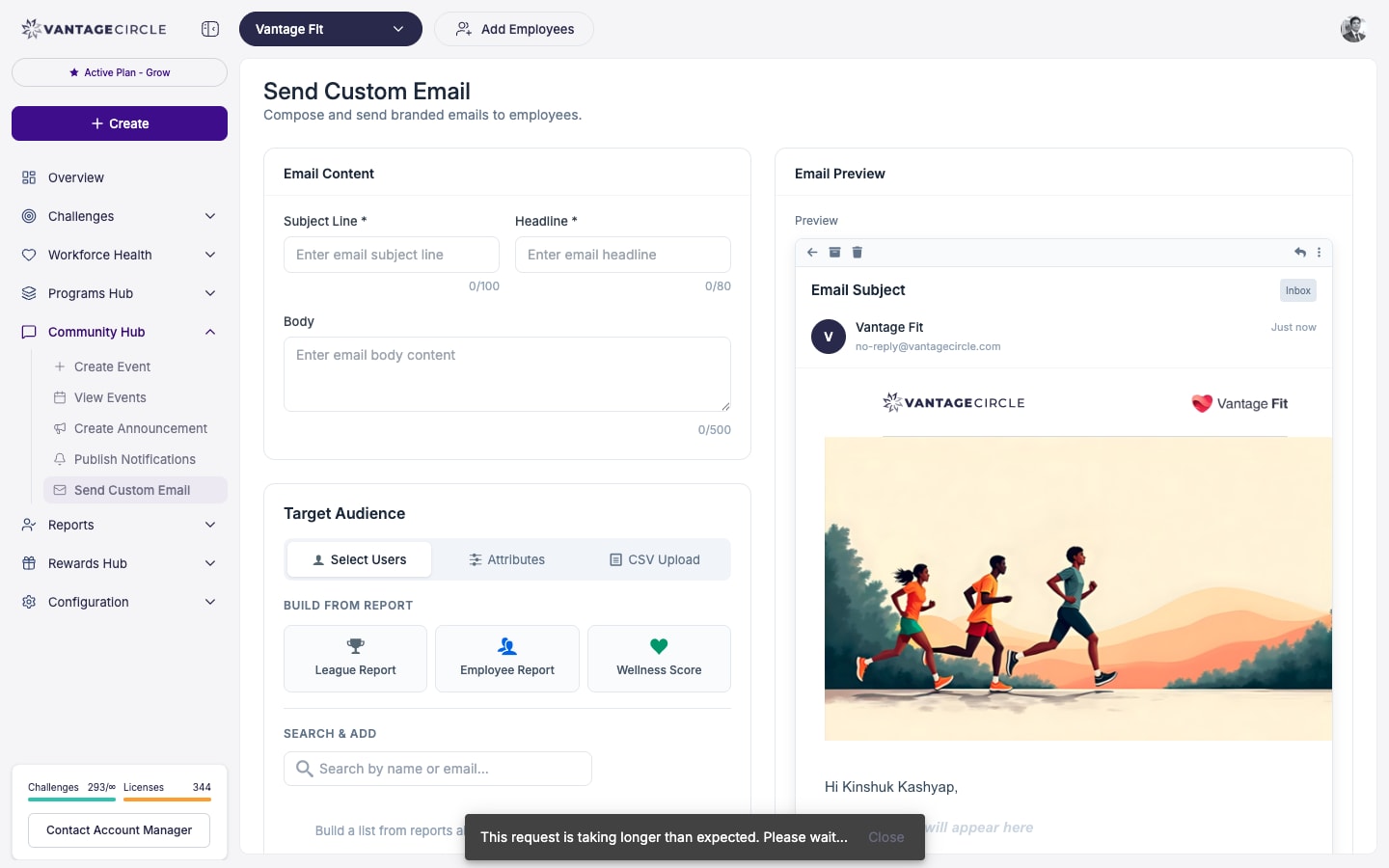
Email Templates
Vantage Fit provides pre-designed email templates that are already styled with clean layouts and responsive design. You select a template as your starting point and then customize the content.
Templates handle the formatting so you can focus on the message. Each template includes:
- Company logo placement (pulled from your configuration).
- Brand colors matching your company's setup.
- Mobile-responsive layout.
- Footer with standard links.
Tip: Choose a template that matches the type of communication — announcement, invitation, reminder, or celebration.
Company Branding
Custom emails are automatically branded with your company's visual identity:
- Company logo — displayed in the email header.
- Brand colors — used for buttons, borders, and accents.
- Company name — appears in the sender and footer.
This branding is pulled from your company's configuration in Vantage Fit. If your logo or colors need updating, contact your Vantage Fit account manager.
Targeting Your Audience
You can send custom emails to:
- All employees in your company.
- Specific departments — great for department-specific wellness initiatives.
- Specific countries or cities — useful for location-based events or programs.
- Filtered demographics — target by age, gender, or other available criteria.
Adding Attachments
You can attach images to your custom emails:
- Logo — add a custom logo if different from your default company logo.
- Banner image — add a visual header to make the email more engaging.
Note: Keep image file sizes reasonable for email delivery. Large images may slow down loading or get clipped by email clients.
Best Practices
- Write a compelling subject line. This determines whether employees open the email. Keep it short and relevant.
- Keep the body concise. Employees skim emails. Use short paragraphs, bullet points, and clear calls to action.
- Always preview. Check how the email looks on both desktop and mobile before sending.
- Coordinate with notifications. If you are announcing something important, send both an email and a push notification for maximum reach.
- Avoid sending too frequently. Reserve custom emails for meaningful communications — challenge launches, wellness program updates, celebrations, and important announcements.
Need more help? Contact your Vantage Fit account manager or email support@vantagecircle.com.
Related articles: