Vantage Fit sends a variety of automated emails to keep employees informed and engaged. Here is every email type, what it does, and how to control it.
Complete List of System Emails
Onboarding Emails
| When It Sends | Description | |
|---|---|---|
| Welcome | When an employee account is created | Welcomes the employee and provides instructions for getting started. |
| App Intro | Shortly after account creation | Introduces key app features and encourages first login. |
| Device Connection | After first login (if no device connected) | Prompts the employee to connect a fitness device or enable phone sensors. |
Challenge Emails
| When It Sends | Description | |
|---|---|---|
| Challenge Enrollment | When employee is enrolled in a challenge | Notifies the employee they have been added to a challenge. |
| Challenge Start | When a challenge begins | Announces the challenge is live and encourages participation. |
| Challenge Invitation | When admin invites employee to a challenge | Sends an invitation with challenge details and a join link. |
| Weekly Progress | Weekly during an active challenge | Shows the employee's progress, score, and ranking for the week. |
| Challenge Completion | When a challenge ends | Summarizes final results, ranking, and achievements. |
| Challenge Reminder | Periodic during active challenges | Reminds employees to participate. Off by default. |
Engagement Emails
| When It Sends | Description | |
|---|---|---|
| Weekly Summary | Every week | A digest of the employee's weekly activity — steps, calories, active minutes. |
| Team Invite | When employee is added to a team | Notifies the employee about their team assignment. |
Event Emails
| When It Sends | Description | |
|---|---|---|
| Event Confirmation | When employee RSVPs to an event | Confirms their RSVP and provides event details. |
Admin Emails
| When It Sends | Description | |
|---|---|---|
| Custom Email | When HR admin sends one | Manually sent by admin from the dashboard. |
Email Branding
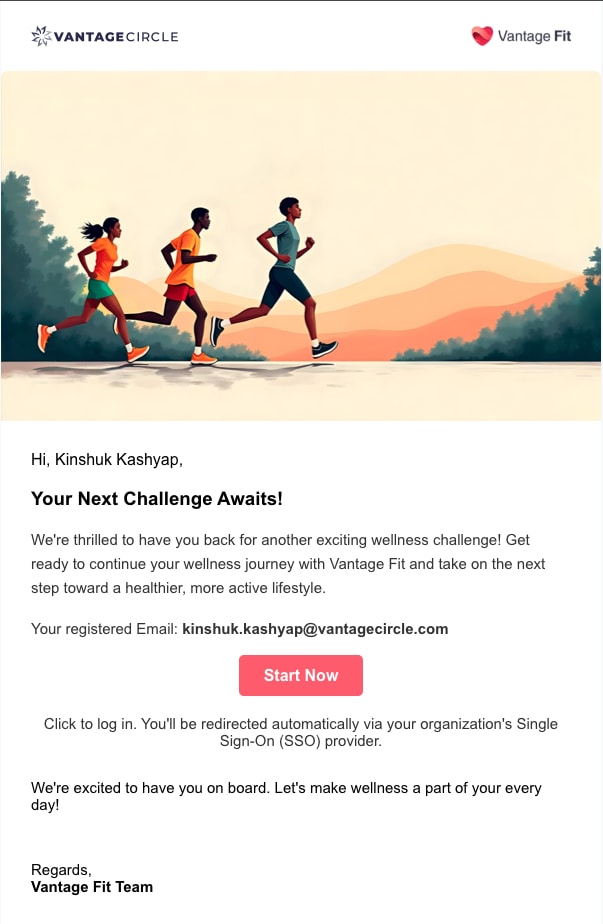
All system emails are automatically branded with your company's identity:
- Company logo — displayed in the email header.
- Company colors — buttons, accents, and borders use your brand colors.
- Localization — emails are sent in the employee's preferred language (if configured).
Managing Email Settings
What You Can Do (Self-Serve)
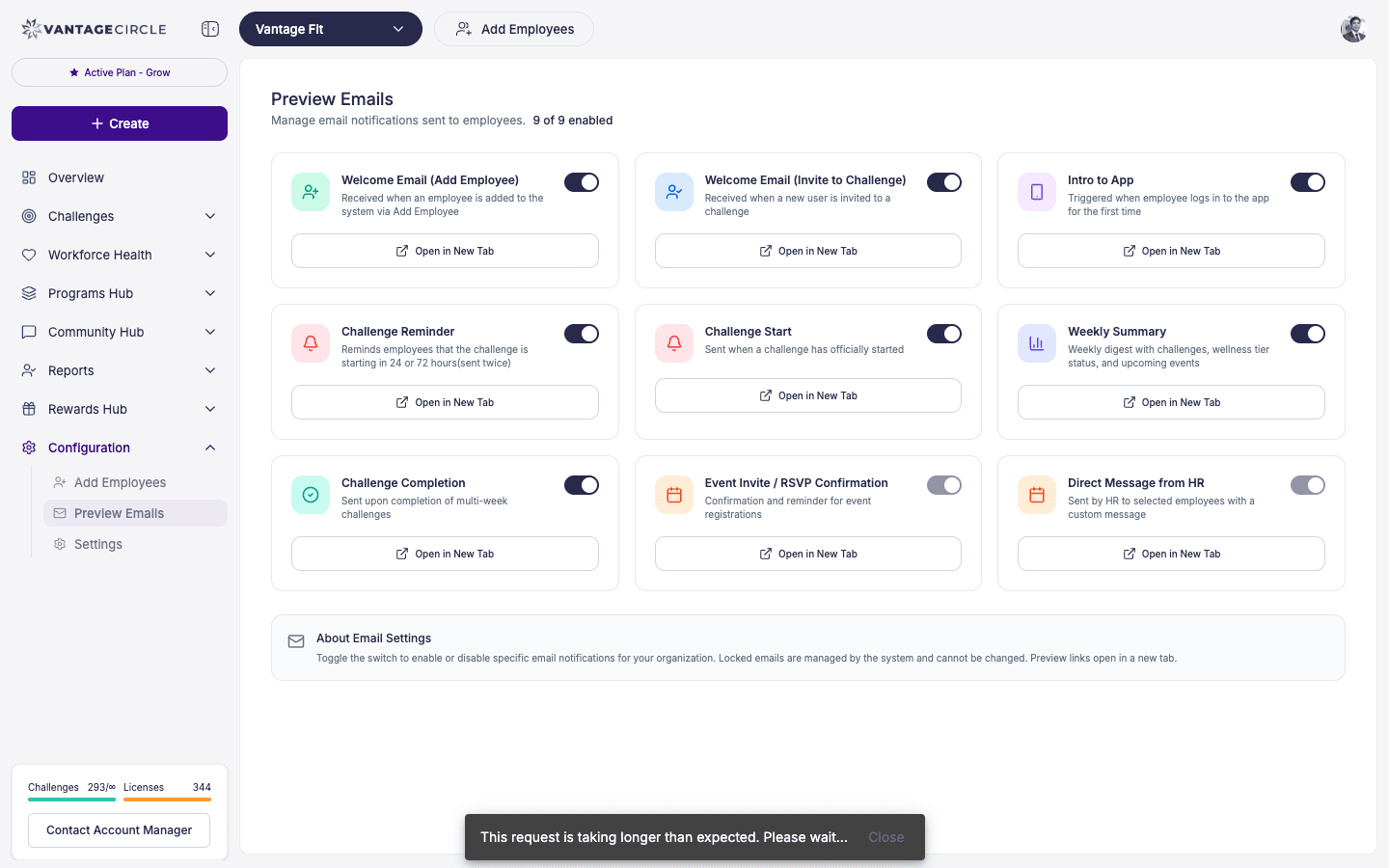
- Preview emails — Go to Configuration → Preview Emails to see what each email type looks like with your company branding.
What Requires Your Vantage Fit Account Manager
Most email toggles are managed by your Vantage Fit account manager:
- Enable/disable specific email types — For example, turning off Weekly Summary or enabling Challenge Reminders.
- Master email switch — A flag called
master email switchcan turn off all Vantage Fit emails for your company. This is used when a company wants to handle communications through their own channels. - Email frequency adjustments — Changing how often certain emails are sent.
Note: To change email settings, contact your Vantage Fit account manager.
Default Email States
| Default State | |
|---|---|
| Welcome | Enabled |
| App Intro | Enabled |
| Challenge Enrollment | Enabled |
| Challenge Start | Enabled |
| Challenge Invitation | Enabled |
| Weekly Progress | Enabled |
| Challenge Completion | Enabled |
| Challenge Reminder | Disabled |
| Weekly Summary | Enabled |
| Team Invite | Enabled |
| Event Confirmation | Enabled |
| Device Connection | Enabled |
| Custom Email | On-demand (manual) |
Tip: Challenge Reminders are off by default because they can feel spammy if the challenge has many weeks. Enable them selectively for challenges where participation is dropping.
Technical Details
- Sender address: Emails are sent from
@vantagecircle.com. - Localization: Emails are rendered in the employee's preferred language. The system supports multiple languages.
- Branding: The email background color and accent color are automatically set to match your company's branding.
If Employees Report Not Receiving Emails
Common causes and solutions:
- Check spam/junk folder — Emails from
@vantagecircle.commay be filtered. - Email type may be disabled — Check with your Vantage Fit account manager to confirm email settings.
- master email switch may be active — The master switch may have been turned on, blocking all emails.
- Incorrect email address — Verify the employee's registered email is correct.
- Company email filters — Your IT team may need to whitelist
vantagecircle.comas a sender domain.
Need more help? Contact your Vantage Fit account manager or email support@vantagecircle.com.
Related articles: