Push notifications are a direct way to reach employees on their phones. You can send them to your entire company or to specific challenge participants.
Sending Company-Wide Notifications
- Log in to the Vantage Fit Admin Dashboard.
- Go to Community in the left sidebar.
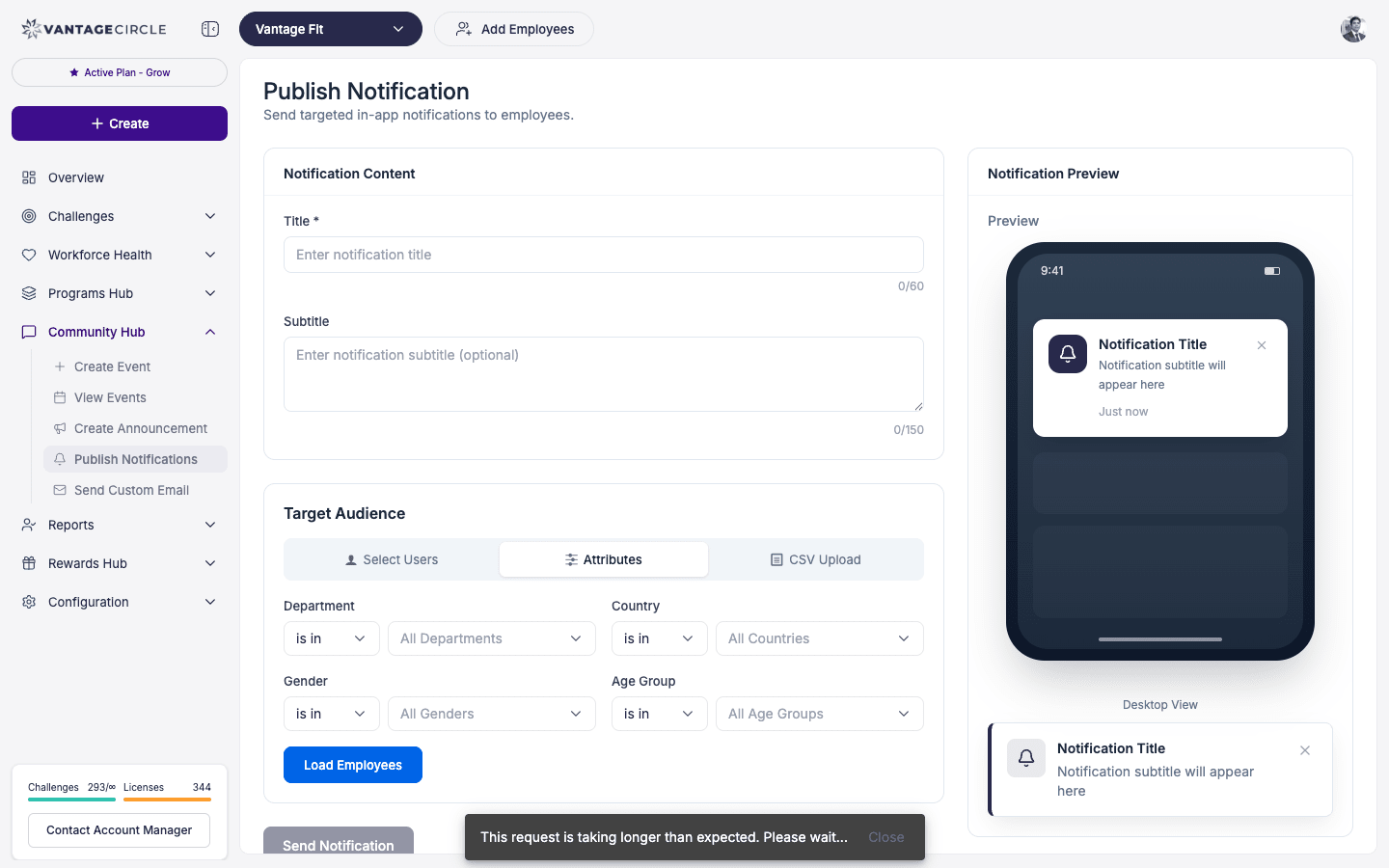
- Click Publish Notifications.
- Write your notification message.
- Select the target audience — you can send to all employees or filter by department, country, or other criteria.
- Preview the notification to make sure it looks right.
- Click Send.
Tip: Keep notifications short and actionable. "Your weekly step challenge starts tomorrow — are you ready?" works better than a long paragraph.
Sending Challenge-Specific Notifications
You can also send notifications directly to participants of a specific challenge.
- Go to Challenges and open the challenge.
- Click Manage to open the Manage Challenge page.
- Click Send Notification.
- Write your message.
- The notification will be sent to all participants of that challenge.
This is useful for:
- Reminding participants about an upcoming theme change.
- Celebrating a milestone ("We just hit 1 million collective steps!").
- Encouraging participation near the end of a challenge.
Selecting a Target Audience
When sending from the Community page, you can filter your audience:
- All employees — sends to everyone in your company.
- By department — target specific departments.
- By country/city — target specific locations.
- By demographics — filter by age, gender, or other available criteria.
Note: Target audience filters for notifications work the same way as challenge target audience filters. See How Do I Set a Target Audience for a Challenge? for details on available filters.
Previewing Before Sending
Always preview your notification before sending.
- After writing your message and selecting the audience, click Preview.
- Review the message text and the estimated number of recipients.
- If everything looks good, confirm and send.
Tip: Preview shows you exactly what employees will see on their phone's notification tray. Use it to check for typos and message length.
Tracking Send Status
After sending a notification, you can track its status:
- Sent — the notification was delivered to the push notification service.
- Delivered — the notification reached employees' devices.
Check the notification history on the Publish Notifications page to see past notifications and their delivery status.
Best Practices
- Timing matters. Send notifications during work hours when employees are likely to be active. Avoid early mornings, late nights, and weekends.
- Do not over-send. One or two notifications per week is ideal. Too many notifications lead to employees disabling them.
- Be specific and encouraging. "You're 2,000 steps away from your daily goal!" is more motivating than "Don't forget to walk."
- Use challenge notifications for challenge updates and company-wide notifications for broader wellness announcements.
Need more help? Contact your Vantage Fit account manager or email support@vantagecircle.com.
Related articles: