The Race Challenge is the simplest format in Vantage Fit. It is a pure step-count competition — employees race to accumulate the most steps over a set period, and the leaderboard ranks everyone by total steps. No targets, no tasks, no weekly themes. Just steps and a leaderboard.
When to Use a Race Challenge
- You want a quick, easy-to-set-up competition.
- The goal is straightforward: who can walk the most?
- You want a short burst of engagement (1-2 weeks).
- You want a pure leaderboard race without completion targets.
How Race Challenges Work
- Single task: Steps only.
- No target: There is no step goal to hit — employees simply accumulate as many steps as possible.
- Leaderboard-ranked: Participants are ranked by total step count.
- Admin picks winners: After the challenge ends, there is a 3-day buffer period for final step syncs. After the buffer, the admin selects the top 3 winners from the leaderboard.
Note: The 3-day buffer exists because wearable devices (especially Fitbit and Garmin) can take time to sync final step counts. This ensures the leaderboard is accurate before you pick winners.
Step-by-Step Setup
Step 1: Start the Wizard
- Log in to the Vantage Fit Admin Dashboard.
- Go to Create Challenge in the sidebar.
- Select Race as the format.
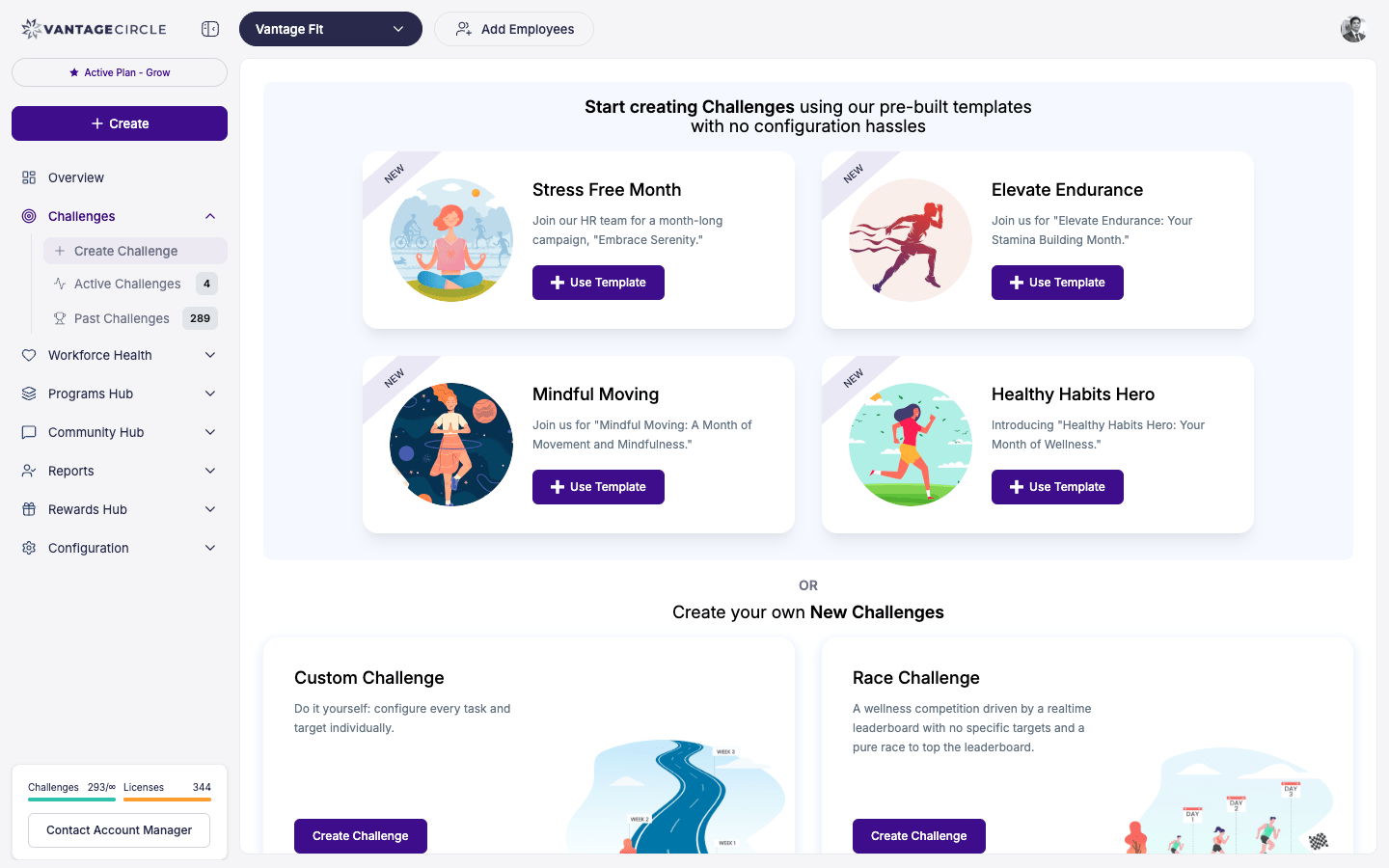
Step 2: Basic Details
- Challenge name — something energetic, like "Step Sprint: May Edition".
- Description — explain the rules: "Walk as many steps as you can. Top 3 win prizes!"
- Challenge image — banner image for the challenge card.
- Start date and end date — keep it short for maximum energy (1-2 weeks works best).
- Privacy — Public or Private.
Step 3: Audience
Choose who participates:
- All employees — company-wide competition.
- Filtered — restrict by department, country, city, or other attributes.
Step 4: Review and Publish
That is it. Race challenges do not have task configuration, team settings, or certificate options. Review your details and click Publish.
Tip: The simplicity is the point. If you find yourself wanting to add tasks, teams, or weekly themes, consider a Custom Challenge instead.
After the Challenge Ends
- The challenge enters a 3-day buffer period after the end date.
- During this period, late-syncing step data from wearables is processed and the leaderboard continues to update.
- After the buffer period, go to Manage Challenge for this challenge.
- Review the final leaderboard.
- Select the top 3 winners — the dashboard prompts you to confirm the winners.
- Announce the results to your employees.
Best Practices
- Keep it short. Races work best as 1-2 week sprints. Longer races lose momentum because the gap between top and bottom participants grows too large.
- Announce prizes upfront. Telling employees what the top 3 win before the race starts drives significantly higher participation.
- Run them between larger challenges. Races are perfect as quick energy boosts between multi-week Custom Challenges. They keep engagement alive during gaps.
- Promote during the race. Send a notification midway through with a leaderboard snapshot to keep the competition feeling alive.
- Wait for the buffer. Do not pick winners before the 3-day buffer ends. Wearable sync delays can change the final standings.
Need more help? Contact your Vantage Fit account manager or email support@vantagecircle.com.
Related articles: