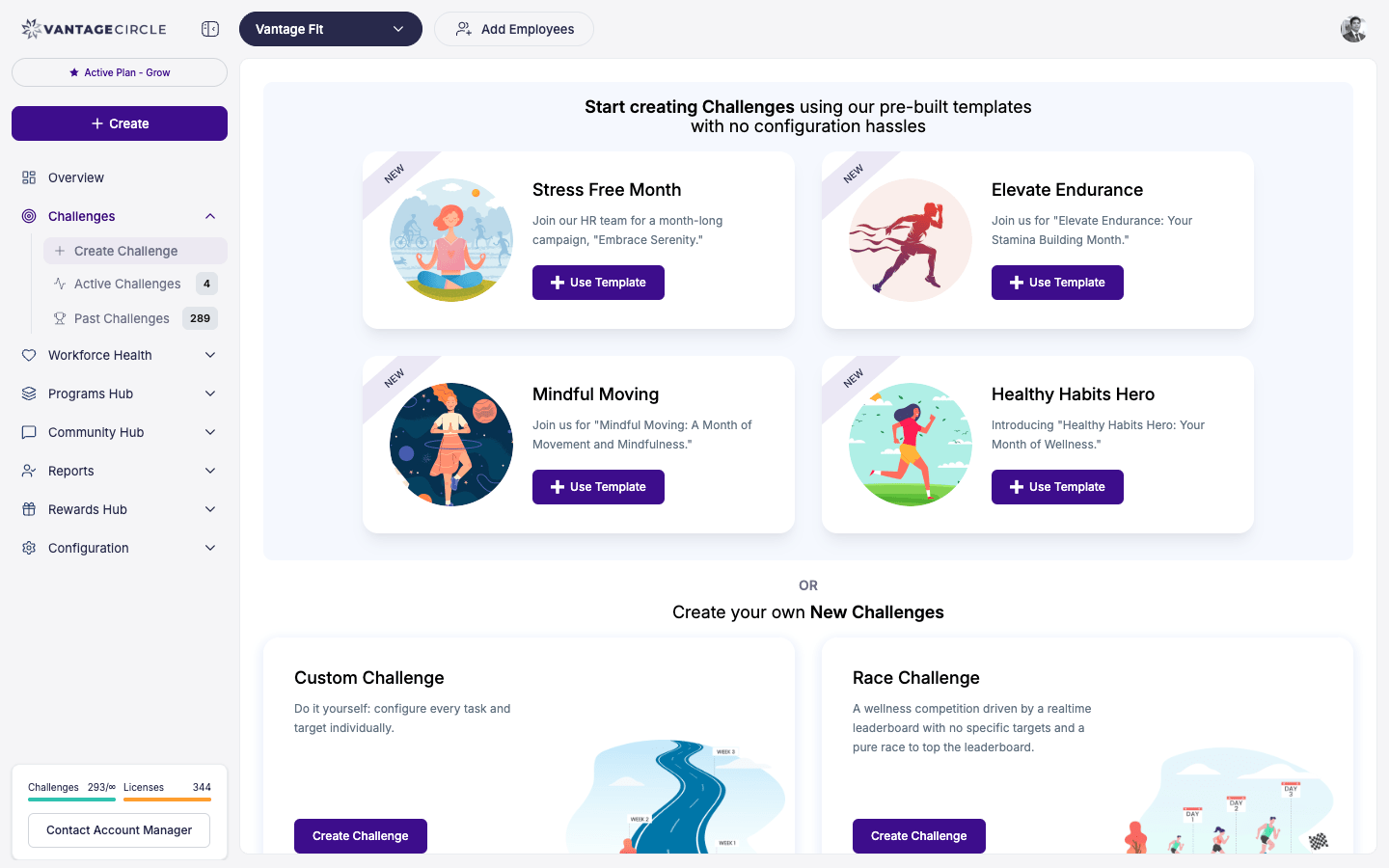
Vantage Fit includes a library of pre-built challenge templates — ready-made challenge configurations designed with best practices in mind. Instead of building a challenge from scratch, you can start from a template and customize it to fit your needs. It is the fastest way to launch a well-structured challenge.
What Are Templates?
Templates are pre-configured challenge setups that include:
- Challenge format (Custom, Race, Journey, etc.) already selected.
- Tasks and targets pre-set with recommended values.
- Scoring configured with balanced point allocations.
- Weekly themes (for Custom challenges) with suggested names and structures.
- Best-practice defaults based on what works well across Vantage Fit clients.
You still control the final configuration — dates, audience, branding, teams, and certificates are all customizable after selecting a template.
Accessing the Template Library
- Log in to the Vantage Fit Admin Dashboard.
- Go to Create Challenge in the sidebar.
- Instead of selecting a format directly, click Templates or Browse Templates.
- The template library opens, showing available pre-built challenges.
Selecting and Customizing a Template
Step 1: Browse and Select
Scroll through the template library. Each template shows:
- Template name — a descriptive title (e.g., "4-Week Holistic Wellness", "Steps Sprint", "Mindful March").
- Format — which challenge format the template uses.
- Duration — suggested length.
- Tasks included — what activities employees will do.
Click on a template to preview its full configuration.
Step 2: Customize Dates and Duration
After selecting a template:
- Set your start date and end date.
- The template adapts to your selected duration. If the template was designed for 4 weeks and you choose 3 weeks, the last week's configuration is trimmed (or you can adjust manually).
Step 3: Customize Audience
Choose who participates:
- All employees or Filtered by department, country, city, etc.
Step 4: Customize Tasks and Targets (Optional)
The template comes with pre-set tasks and targets. You can:
- Keep them as-is — the defaults are designed to work well.
- Adjust targets — increase or decrease difficulty based on your employee base.
- Add or remove tasks — add a task that fits your program or remove one that does not apply.
- Change point values — rebalance scoring to emphasize different activities.
Tip: If this is your first challenge, keep the template defaults. They are based on patterns that work well across many companies. You can fine-tune in future challenges based on what you learn.
Step 5: Configure Teams, Certificates, and Rewards
Add optional elements:
- Enable teams and set team sizes.
- Enable certificates and customize with your branding.
- Set reward points if your company uses the rewards marketplace.
Step 6: Review and Publish
Review the final configuration and publish. The challenge is live.
Why Use Templates?
| Benefit | Description |
|---|---|
| Faster setup | Skip the blank-canvas configuration. A template gives you a solid starting point in seconds. |
| Best practices built in | Templates use task combinations, targets, and scoring that have proven effective across Vantage Fit clients. |
| Reduced risk | First-time admins avoid common mistakes like setting targets too high, using only one task type, or unbalanced scoring. |
| Consistency | Templates help you maintain a consistent challenge quality across your wellness program. |
When to Build from Scratch Instead
Templates are great for most situations, but you may want to build from scratch if:
- You have very specific tasks or targets that no template covers.
- You want a unique multi-week narrative with custom themes.
- You are running a specialized challenge tied to a specific company event.
- You have already run several challenges and know exactly what works for your employees.
Tip: Even if you plan to heavily customize, starting from a template and modifying it is often faster than starting from an empty challenge.
Best Practices
- Start with templates for your first few challenges. Learn what works before customizing heavily.
- Compare templates before choosing. Browse the full library to find the closest match for your program goals.
- Customize targets to your population. A template designed for a highly active tech company may set targets too high for a less active employee base. Adjust accordingly.
- Save your customized configurations mentally. After running a few template-based challenges, you will develop your own best practices — then you can build from scratch with confidence.
Need more help? Contact your Vantage Fit account manager or email support@vantagecircle.com.
Related articles: