You can change or disconnect your fitness device at any time from Device Management. The process depends on what type of device you're using.
At least one connection must always be enabled — this is how Vantage Fit receives your step data. During onboarding, the app connects you to your platform's default health source:
- iPhone → Apple Health
- Android → Google Fit for steps, plus Health Connect for supported Android health data
You can then optionally connect a Fitbit or Garmin on top of this, which takes over as your primary step source.
Where to Manage Devices
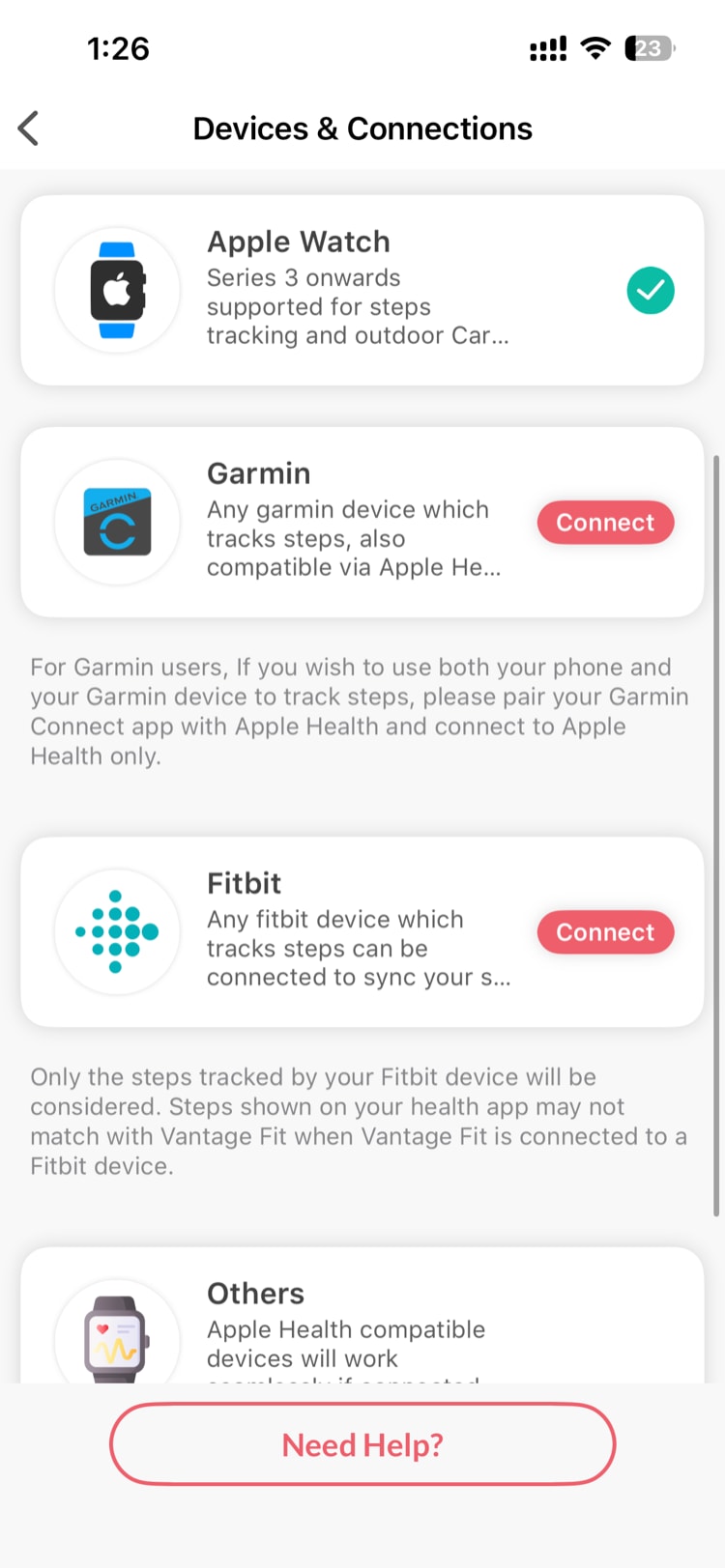
Go to Settings → Device Management to see your connected device and available options.
Disconnecting Fitbit or Garmin
Fitbit and Garmin are managed directly within Vantage Fit:
- Go to Settings → Device Management
- Tap on your connected device (Fitbit or Garmin)
- Tap "Disconnect"
- Confirm — Vantage Fit can no longer access your Fitbit or Garmin data
After disconnecting, your step source automatically switches back to:
- Apple Health (on iPhone)
- Google Fit (on Android)
Note: Disconnecting doesn't delete your historical data. Your past steps and activities remain in Vantage Fit.
Disconnecting Apple Health or Android Health Permissions
Apple Health and Android health permissions are managed by your phone's operating system, not by Vantage Fit. To revoke access:
Apple Health (iPhone)
- Open your iPhone Settings app
- Tap Health → Data Access & Devices
- Find Vantage Fit and tap it
- Toggle off the data categories you want to stop sharing (or tap "Turn Off All Categories")
Android
Use your phone's Google account and health app permission settings to revoke Vantage Fit access. Health Connect permissions may also appear for workouts, sleep, or heart rate, but Android step totals currently use Google Fit unless Fitbit or Garmin is connected.
Note: You cannot disconnect Apple Health or Android system health permissions from within the Vantage Fit app. These are controlled by your phone's settings.
Switching Between Devices
Vantage Fit uses one primary device at a time for step data. This prevents double-counting.
Switching from one device to another (e.g., Fitbit → Garmin)
Connecting a new device (Fitbit or Garmin) automatically disconnects the previous one. You don't need to manually disconnect first.
- Go to Settings → Device Management
- Tap the new device you want to connect (e.g., Garmin)
- Complete the sign-in
- Your previous device (e.g., Fitbit) is automatically disconnected
Switching from Fitbit/Garmin to phone-only
- Disconnect your Fitbit or Garmin (see above)
- Make sure Apple Health (iPhone) or Google Fit (Android) is connected
- Steps now come from Apple Health on iPhone or Google Fit on Android
Switching from phone-only to Fitbit or Garmin
- Go to Settings → Device Management
- Connect Fitbit or Garmin
- That device becomes your primary step source — Apple Health / Google Fit steps are no longer used
Device Priority
Here's how Vantage Fit decides where to get your steps:
| If Connected | Step Source |
|---|---|
| Fitbit | Fitbit (exclusive) |
| Garmin | Garmin (exclusive) |
| No Fitbit or Garmin | Apple Health (iPhone) or Google Fit (Android) |
Only one device (Fitbit or Garmin) can be connected at a time. If neither is connected, the app reads from Apple Health on iPhone or Google Fit on Android.
Need more help? Contact your HR admin or reach out to support via the Help option in the app menu.
Related articles: