If your step count in Vantage Fit is stuck at 0 or not updating, here's how to fix it.
Quick Fixes (Try These First)
- Open the Vantage Fit app — this triggers an immediate sync
- Tap the Plus (+) button → Sync — forces a manual sync
- Wait 15 seconds — there's a minimum gap between syncs
If steps appear after opening the app, your sync is working — it just needs the app to be active (especially on Android).
Check Your Device Connection
Go to Settings → Device Management and verify:
- Apple Health (iPhone) or your Android step source, usually Google Fit, is connected
- If you use Fitbit or Garmin, verify they're still connected (connections can expire)
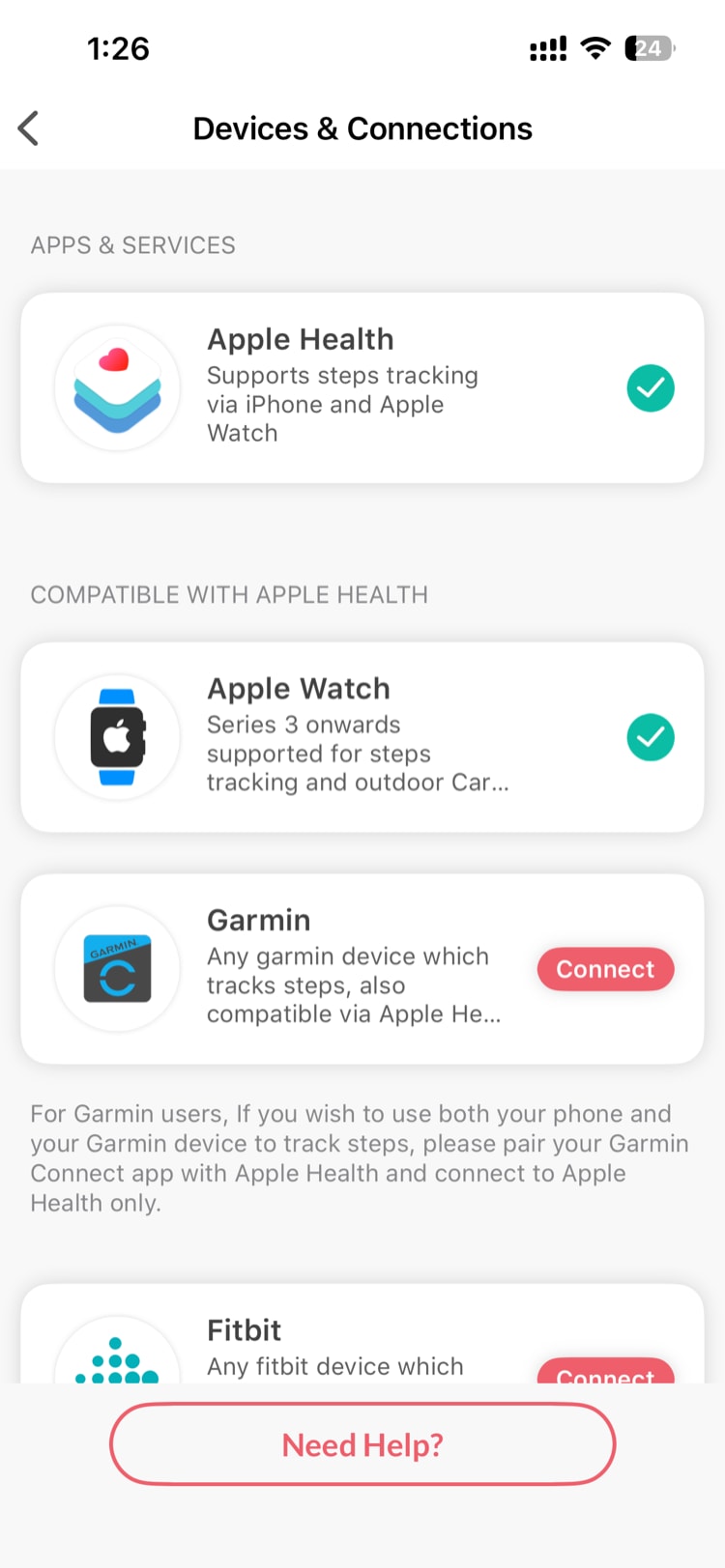
Garmin users: Garmin authorization expires after 60 days. If your Garmin stopped syncing, disconnect and reconnect it.
Check Permissions
iPhone
- Open your phone's Settings → Health → Vantage Fit
- Make sure Steps (and other data types) are toggled ON for both reading and writing
- Also check Settings → Vantage Fit → Health for the same toggles
- Check Settings → Privacy & Security → Motion & Fitness — make sure Fitness Tracking is enabled and Vantage Fit is toggled on. If this permission hasn't been prompted yet, the app will ask for it when you try to start an outdoor activity (GPS workout).
Android
- Open your phone's Settings → Health Connect (or search for it)
- Find Vantage Fit in the list of connected apps
- Verify that Steps permission is granted
Android: Check Battery Optimization
This is the most common cause of Android sync issues. Many Android phones limit background activity to save battery.
Samsung
Settings → Apps → Vantage Fit → Battery → "Unrestricted"
Xiaomi / Redmi
Settings → Apps → Manage apps → Vantage Fit → Battery saver → "No restrictions" Also: Settings → Battery & performance → App battery saver → Vantage Fit → "No restrictions"
Huawei
Settings → Battery → App launch → Vantage Fit → Toggle OFF "Manage automatically" → Enable all three toggles manually
General Android
Settings → Apps → Vantage Fit → Battery → "Unrestricted" or "Don't optimize"
Fitbit Steps Not Syncing
- Open the Fitbit app on your phone — make sure it's showing recent steps
- In Vantage Fit, go to Settings → Device Management → check Fitbit is connected
- If connected but not syncing, disconnect and reconnect Fitbit
Note: When Fitbit is your connected device, Vantage Fit uses Fitbit steps only.
Still Not Working?
If none of the above fixes work:
- Check if your phone has step data in Apple Health (iPhone) or your Android fitness app, usually Google Fit — if your phone shows 0 steps there, the issue is with your phone/device, not Vantage Fit
- Try restarting your phone
Need more help? Contact support via the app: Settings → Help/Support.
Related articles: