Vantage Fit can send you gentle nudges throughout the day to help you stay on top of your wellness tracking. Set reminders for mood check-ins, water intake, and meals so you never forget to log.
How to Set Up Reminders
- Go to Settings (tap your profile icon, then Settings).
- Tap Reminder Settings.
- Choose the reminder type you want to set up.
- Set your preferred time.
- Select the repeat days (e.g., weekdays only, every day, or specific days).
- Save.
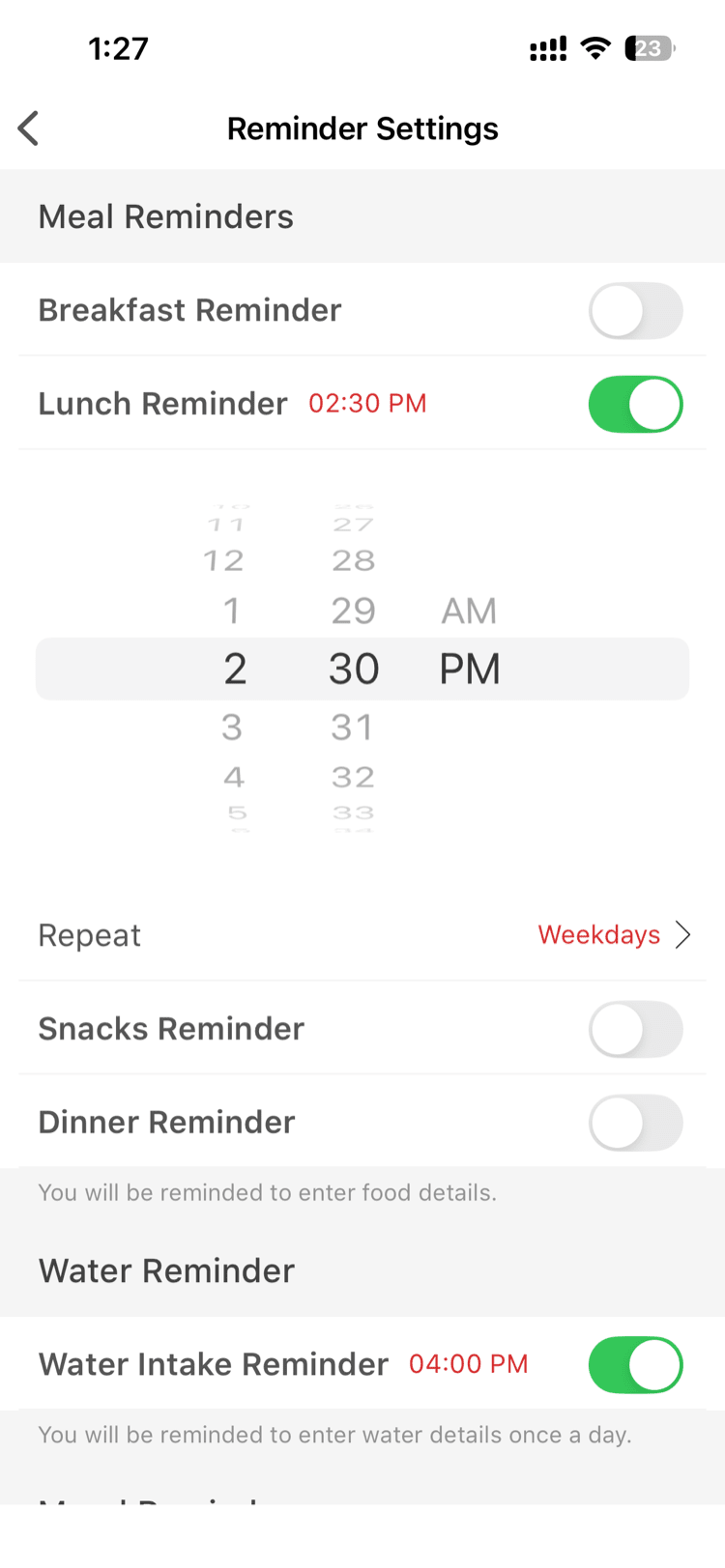
Available Reminder Types
| Reminder | What It Nudges You To Do |
|---|---|
| Mood | Log your mood on the 1-5 scale |
| Water | Log a glass of water |
| Breakfast | Log your breakfast meal |
| Lunch | Log your lunch meal |
| Snacks | Log your snacks |
| Dinner | Log your dinner meal |
You can set each reminder independently with its own time and repeat schedule.
How Reminders Work
- Reminders appear as local notifications on your device at the time you've set.
- They're triggered by your phone's notification system — no internet connection required at notification time.
- Tapping the notification opens the relevant logging screen in Vantage Fit.
Note: Make sure notifications are enabled for Vantage Fit in your phone's system settings. If notifications are blocked at the system level, reminders won't appear even if you've set them in the app.
Suggested Reminder Schedule
Here's a sample schedule that works well for most people:
| Time | Reminder |
|---|---|
| 8:00 AM | Mood |
| 8:30 AM | Breakfast |
| 10:00 AM | Water |
| 12:30 PM | Lunch |
| 2:00 PM | Water |
| 4:00 PM | Snacks |
| 5:00 PM | Water |
| 7:30 PM | Dinner |
Tip: Start with just 2-3 reminders. You can always add more once the habit is established. Too many notifications at once can feel overwhelming.
Turning Off Reminders
To disable a reminder:
- Go to Settings > Reminder Settings.
- Toggle off the reminder you no longer want.
You can always turn it back on later.
Need more help? Contact support from Settings → Help in the app.
Related articles: