Apple Health is the de facto connection for Vantage Fit on iPhone. On your first sign-in, the app prompts you to allow Vantage Fit to read health data from the Health app — once you grant access, everything works automatically from that point.
If you have an Apple Watch paired with your iPhone, it works seamlessly — Apple Health picks up your Watch data automatically, and Vantage Fit reads it from there. No separate Watch connection is needed.
First Sign-In: Apple Health Permission
When you first sign in to Vantage Fit on iPhone:
- The iOS permission dialog appears automatically — this is Apple's native health data access screen showing what data Vantage Fit wants to read and write.
- Grant all permissions — it is recommended that you enable all categories for the app to work properly. Tap "Allow" at the top right.
That's it — Apple Health is now connected. Steps start syncing immediately.
Note: If you have an Apple Watch, Amazfit, Xiaomi Mi Band, Huawei Watch, or any other wearable that writes to Apple Health, Vantage Fit will pick up that data automatically.
Connecting Later (If You Skipped or Disconnected)
If you need to connect Apple Health manually:
- Open Vantage Fit and go to Settings
- Tap "Device Management"
- Tap "Apple Health" → then "Connect"
What Data is Synced
| Data Type | Direction | Details |
|---|---|---|
| Steps | Apple Health → Vantage Fit | Daily total + hourly breakdown |
| Distance | Apple Health → Vantage Fit | Walking + running distance |
| Workouts | Apple Health → Vantage Fit | Duration, type, calories burned |
| Weight | Apple Health → Vantage Fit | Read from Apple Health |
| Calories | Apple Health → Vantage Fit | Active and resting energy |
Importing Activities from Apple Health
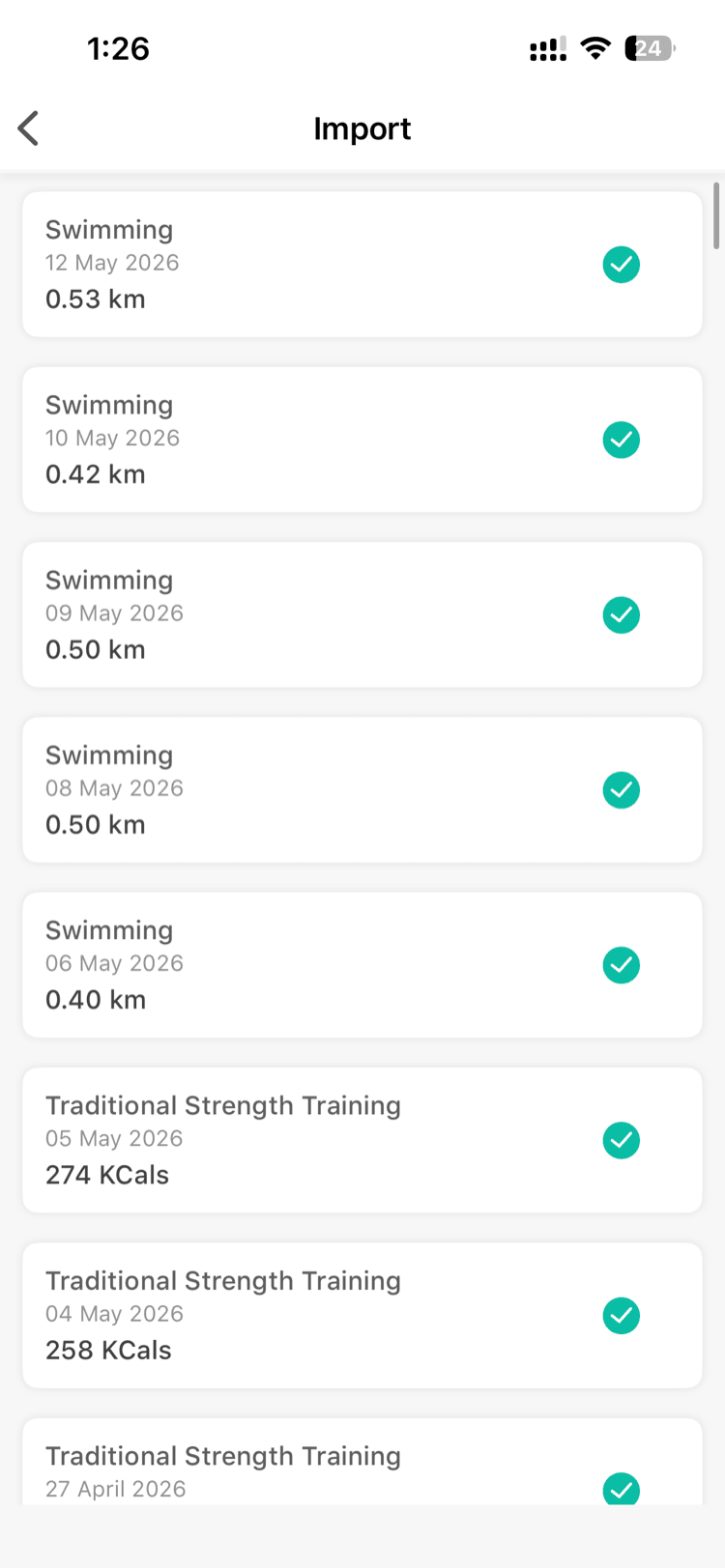
Historical data does not auto-import. Here's how it works:
- If there are activities in Apple Health that haven't been synced, you'll see an Import button on your My Activities page.
- Tap Import to see a list of available activities — you can choose which ones to import.
- Going forward, whenever you complete a new activity that gets saved to Apple Health (e.g., a workout from your Apple Watch), you'll receive a notification in Vantage Fit letting you know it's available to import.
If You Denied Permission
If you accidentally denied Apple Health access, or tapped "Don't Allow" during the prompt, you can fix it from your phone's settings:
- Open your iPhone Settings app (the system Settings, not Vantage Fit)
- Scroll down and tap Health
- Tap Data Access & Devices
- Find Vantage Fit in the list and tap it
- Toggle on the data categories you want to share
Note: Vantage Fit cannot request the permission dialog again after you've denied it. You must enable access from your phone's Settings app.
How Background Sync Works
Once connected, Apple Health delivers step updates to Vantage Fit approximately every hour — even when the app is closed.
You don't need to keep the app open. Your steps will be up to date within about an hour of walking them.
Tip: If your steps seem delayed, just open the app. Opening Vantage Fit triggers an immediate sync from Apple Health.
Need more help? If your steps aren't syncing after connecting Apple Health, see My Steps Aren't Syncing — What Do I Do?.
Related articles: