If you completed a GPS-tracked workout (walking, running, cycling) but the app shows 0 distance or much less than expected, it's almost always a permissions issue. Here's how to fix it.
The Permissions Screen
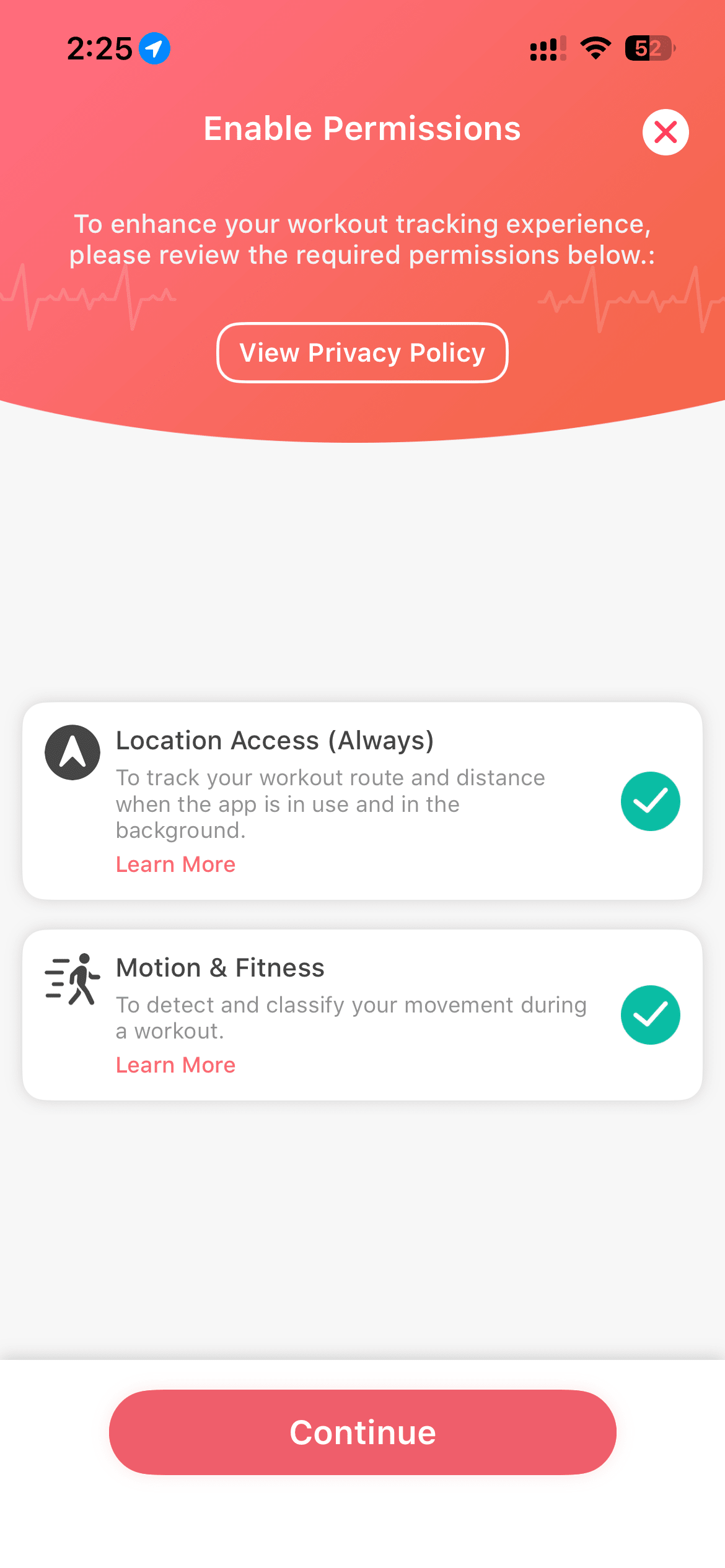
When you first try to start an outdoor activity, Vantage Fit shows an Enable Permissions screen. This screen checks three things:
- Location Access (Always & Precise) — to track your route and distance
- Motion and Fitness Data — to detect and classify your movement
- Privacy Assurance — your data is not shared externally
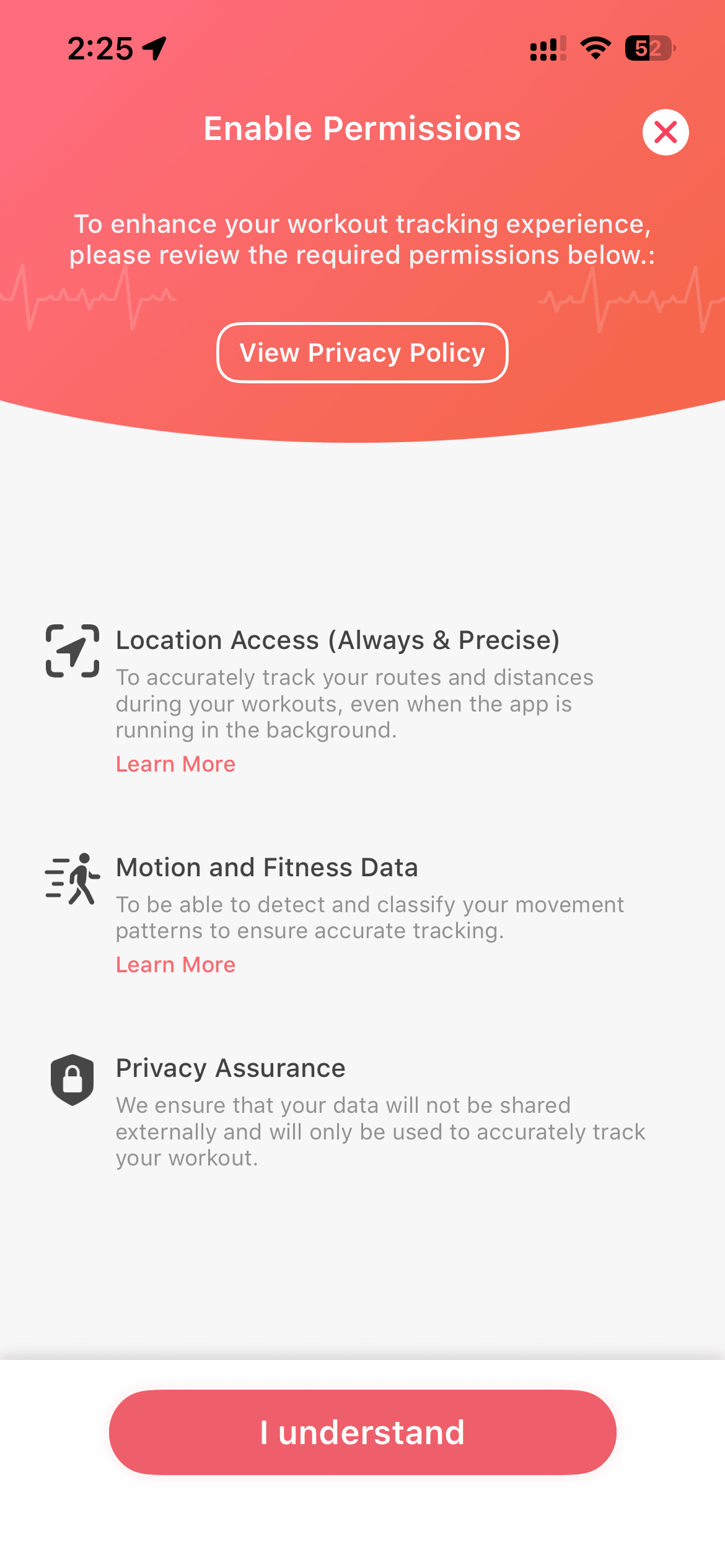
Tap "I understand" to proceed. The app then asks for each permission individually.
Setting Up Location Permissions (iOS)
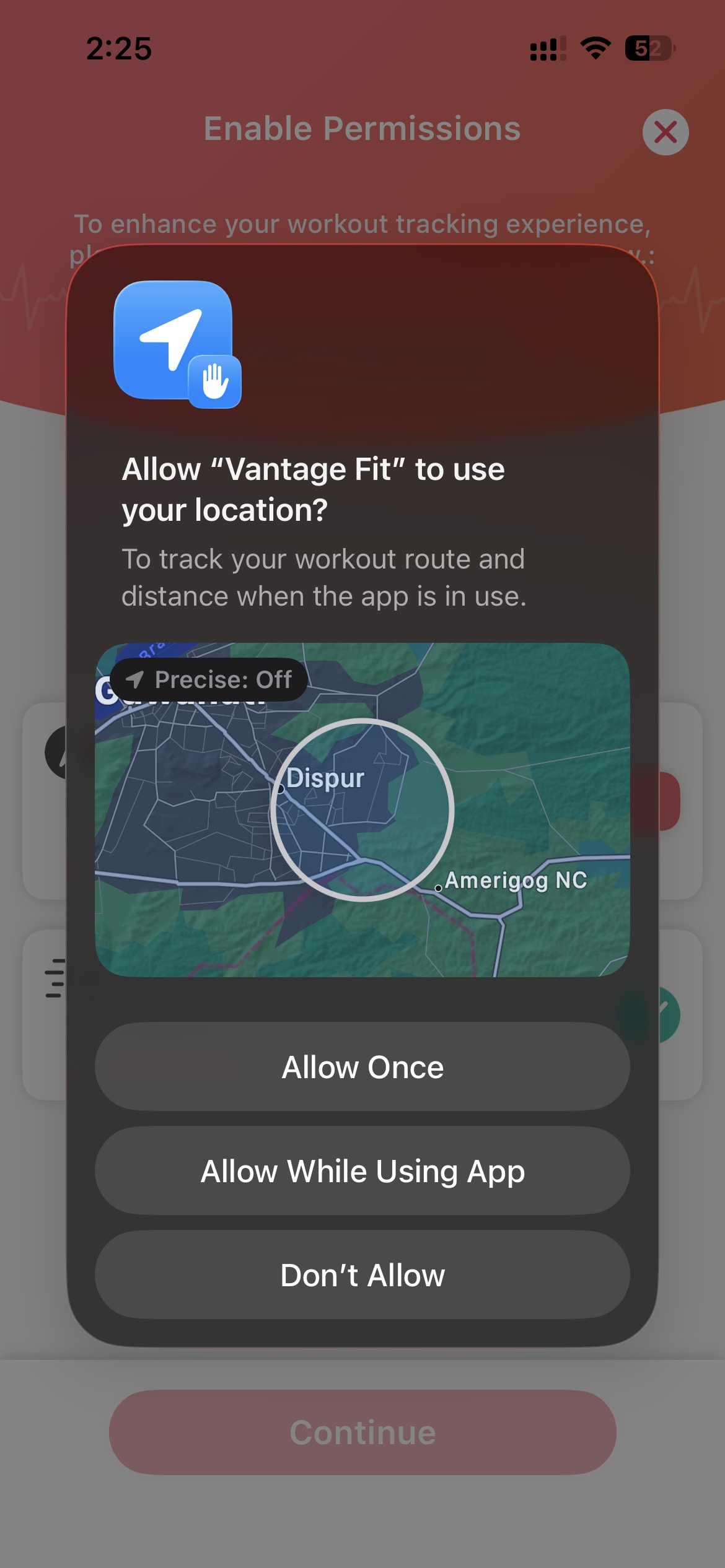
Step 1: Allow Location Access
iOS shows a system dialog asking to allow Vantage Fit to use your location. Choose "Allow While Using App" — this is the minimum required for GPS tracking.
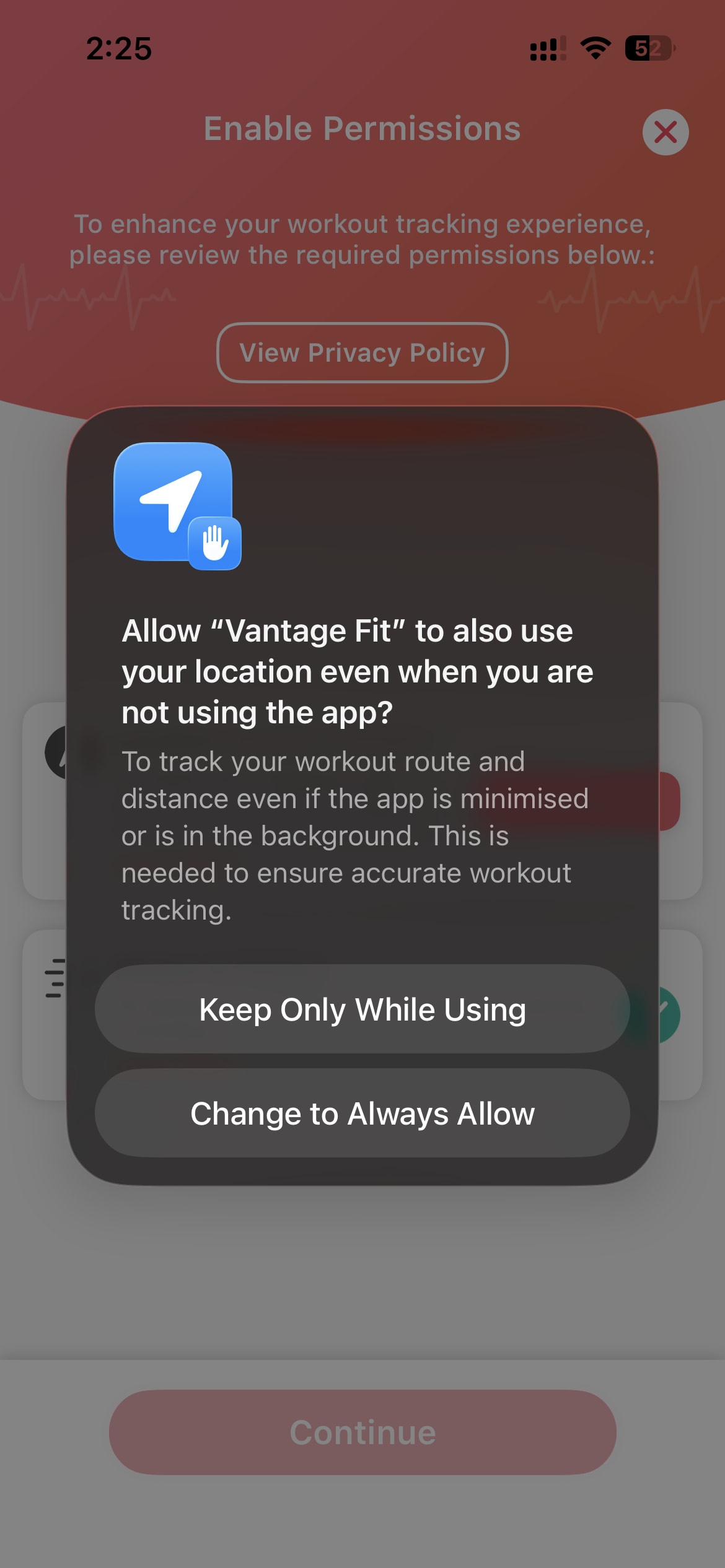
Step 2: Upgrade to "Always Allow"
iOS then asks if you want to allow location access even when the app is in the background. Choose "Change to Always Allow" — this ensures your route is tracked accurately even if the app is minimized during your workout.
Step 3: Verify All Permissions Are Granted
After granting permissions, the Enable Permissions screen updates to show the status of each requirement. If any permission still needs attention, you'll see an "Open Settings" button next to it.
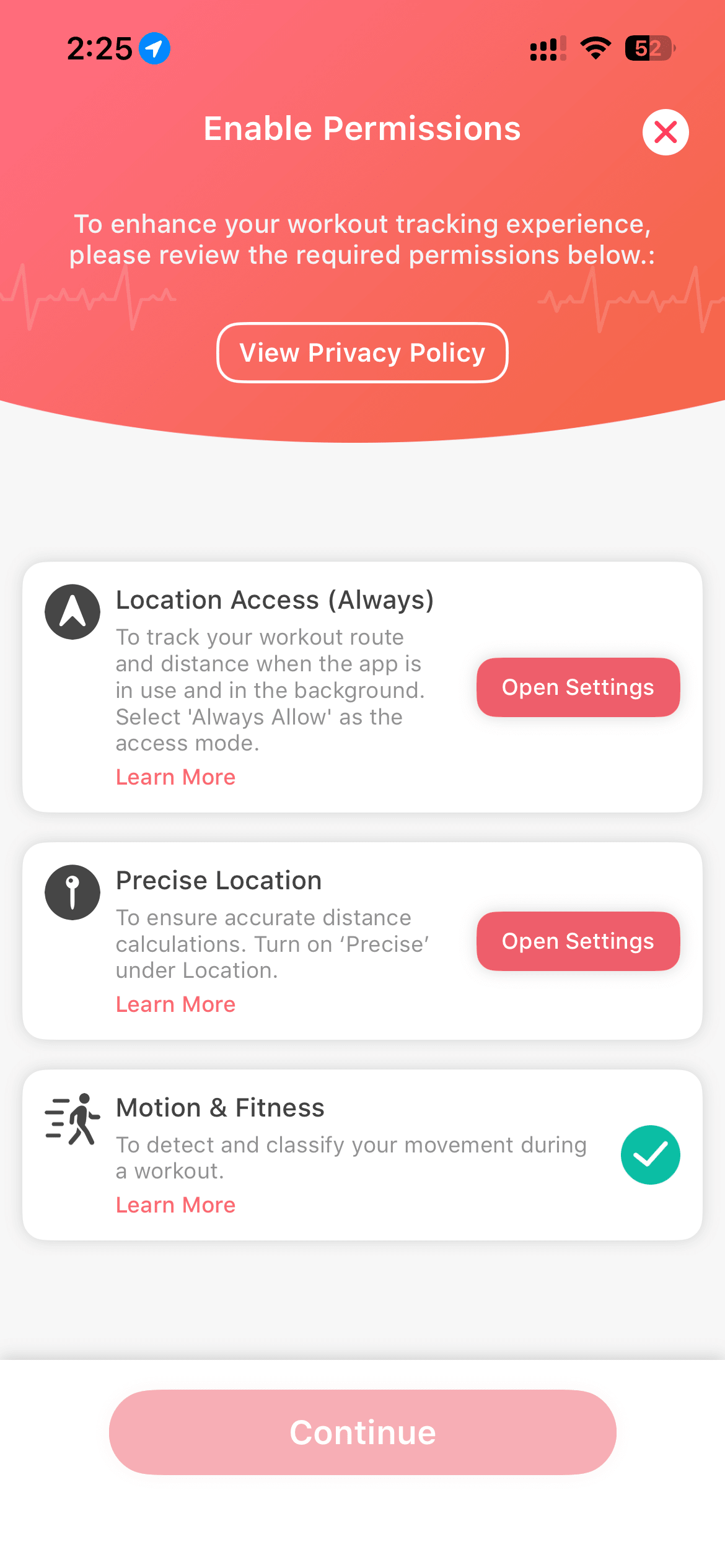
When everything is set correctly, all items show green checkmarks and the Continue button becomes active.
Fixing Permissions After the Fact
If you previously denied or skipped permissions, fix them from your phone's Settings:
On iOS:
- Go to Settings → Privacy & Security → Location Services → Vantage Fit
- Set to "Always"
- Make sure "Precise Location" is turned on
- Also check Settings → Privacy & Security → Motion & Fitness — make sure Fitness Tracking is enabled
On Android:
- Go to Settings → Apps → Vantage Fit → Permissions → Location
- Select "Allow all the time"
- Make sure "Use precise location" is enabled
GPS Doesn't Work Indoors
GPS signals are blocked or severely degraded indoors. If you were on a treadmill, indoor track, or in a gym:
- The app may record 0 distance or very inaccurate distance
- This is expected — GPS requires satellite visibility
What to do: For indoor workouts, use manual activity logging instead of GPS tracking. Log the activity type, duration, and distance manually. Indoor steps are still counted by your phone's pedometer or connected device — GPS is only needed for route-based outdoor workouts.
Poor GPS Signal Outdoors
Even outdoors, GPS accuracy can suffer:
- Between tall buildings (urban canyons)
- Under heavy tree cover
- In underground or covered areas
What to do: Start your workout in an open area with clear sky visibility. Wait a few seconds after starting for the GPS to lock on before you begin moving.
iOS GPS Accuracy Filtering
On iOS, Vantage Fit filters out GPS data points that fall below a quality threshold — roughly 50 meters of accuracy for walking and running, with tighter thresholds at higher speeds. This prevents inaccurate data from skewing your workout.
What this means:
- If your entire workout had poor GPS signal, all data points may be filtered out → 0 distance
- If part of your route had good signal and part didn't, only the accurate portions are counted
Vehicle Detection
If Vantage Fit detects movement that looks like vehicle travel, the GPS workout may stop at that point. This can happen if:
- You start a workout while still in your car
- You are moving much faster than expected for the selected activity type
What to do: Start your GPS workout only after you've exited your vehicle and are on foot or bicycle.
Need more help? Contact support from Settings → Help in the app.
Related articles: