Vantage Fit lets you choose your preferred units for distance, weight, height, water intake, and energy. Everything adjusts across the app when you change a setting.
How to Change Your Units
- Open Vantage Fit and go to Settings
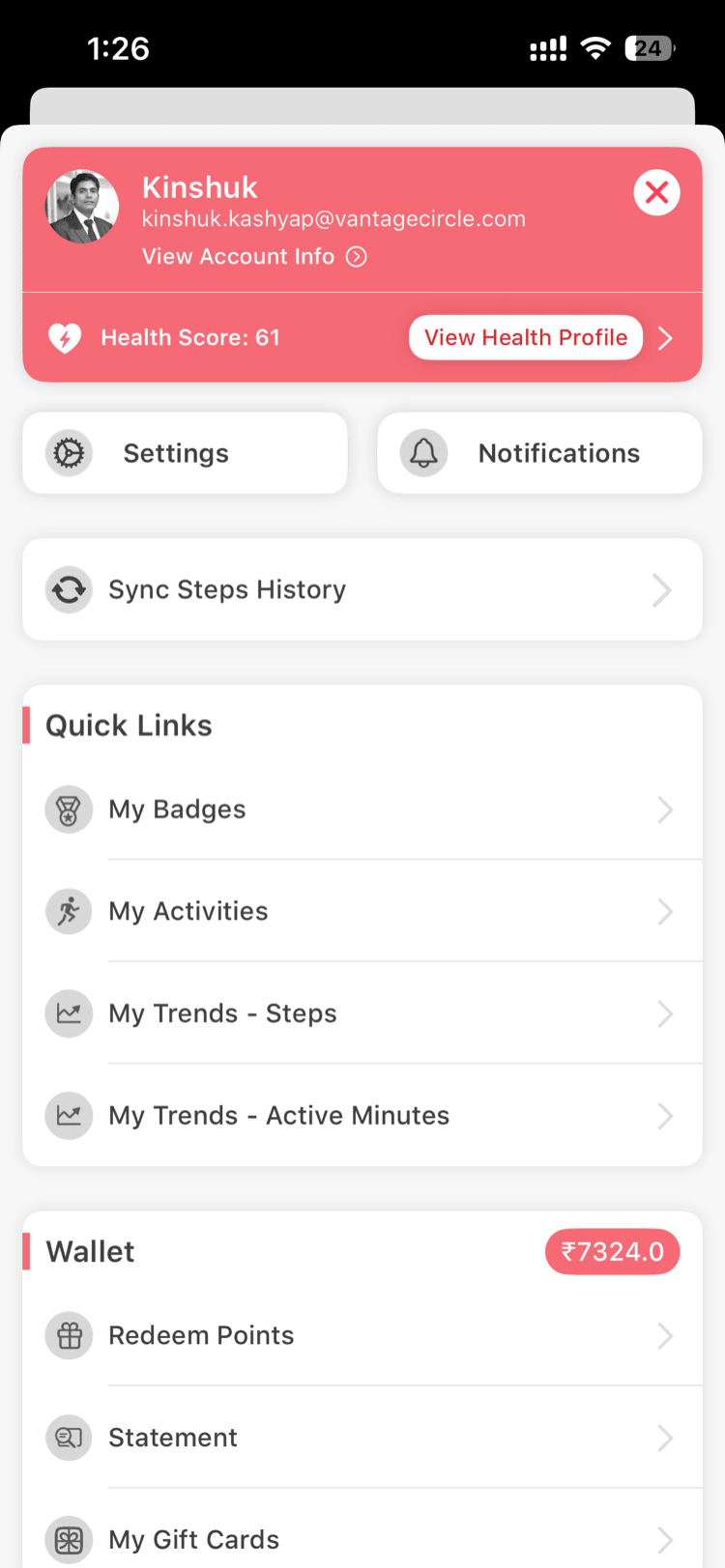
- Tap "Unit Settings"
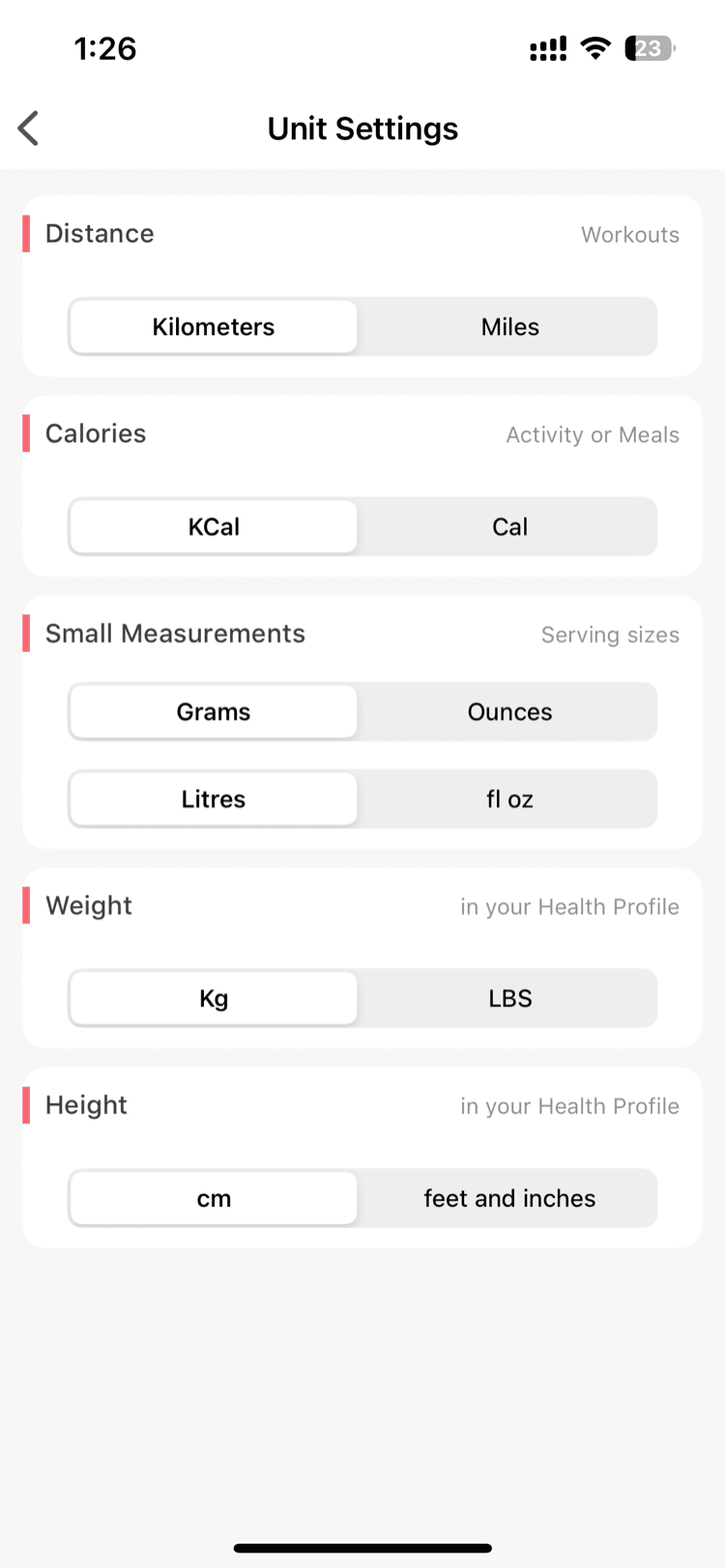
- Choose your preferred unit for each category:
Available Unit Options
| Category | Options | Default |
|---|---|---|
| Distance | Kilometers (km) or Miles (mi) | Auto-detected from device locale |
| Length / Height | Centimeters (cm) or Feet + Inches (ft/in) | Auto-detected from device locale |
| Large Weight (body weight) | Kilograms (kg) or Pounds (lbs) | Auto-detected from device locale |
| Small Weight (food logging) | Grams (g) or Ounces (oz) | Auto-detected from device locale |
| Water / Liquids | Litres (L) or Fluid Ounces (fl oz) | Auto-detected from device locale |
| Energy | Calories (cal) or Kilocalories (kcal) | Auto-detected from device locale |
Changes take effect immediately — you don't need to restart the app.
How Default Units Are Set
When you first launch Vantage Fit, the app automatically detects your preferred units from your device locale settings. For example:
- US locale → miles, pounds, ounces, fluid ounces
- UK locale → miles, pounds, grams, litres
- India / most other locales → kilometers, kilograms, grams, litres
You can override any of these at any time.
How Unit Conversion Works
When you change your display units, the app converts all values automatically. Your actual data doesn't change.
This means:
- Switching from kg to lbs doesn't alter your stored weight — it just shows the converted value
- Switching from km to miles recalculates all displayed distances
- You can switch back and forth without losing any data
Need more help? Contact your HR admin or reach out to support via the Help option in the app menu.
Related articles: